
Immersive VR that moves with you
Portable VR Systems
more3D’s portable VR systems bring high-performance virtual reality to wherever you need it – whether it’s a trade show, client site, university, or production floor.
Immerse in your project
Portable VR setups
Portable 3D Stereo
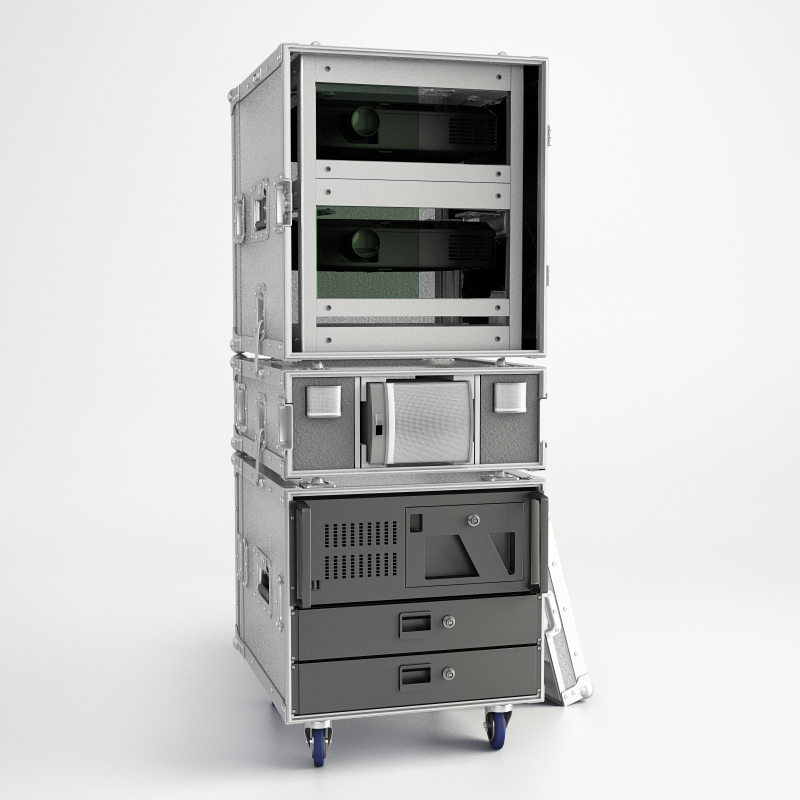
As a mobile projection system, the morePheus³ FCE (Flight Case Edition) is ideal for trade shows and events. Delivered in a durable aluminum-wood flight case with wheels, it’s easy to transport in a standard car – and your hardware stays well protected at all times.
moreSonic 2720
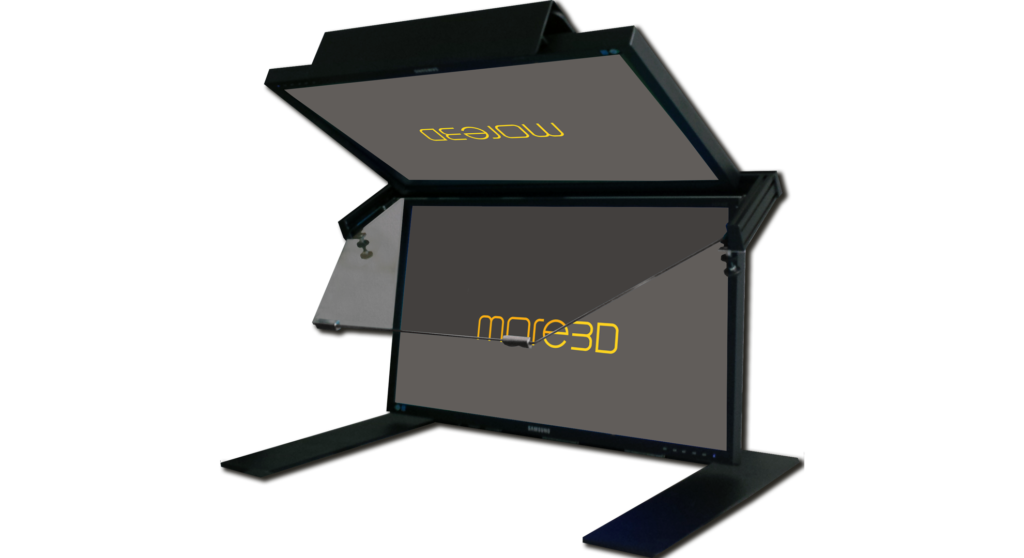
Built for long working hours, the moreSonic 2720 and moreSonic³ 3840UHD deliver flicker-free stereo images at full resolution. With no sweet spot limitations or eye strain, they’re the ideal drop-in replacement for Planar SD-series displays – refined, robust, and made in Germany.
Angled Screens
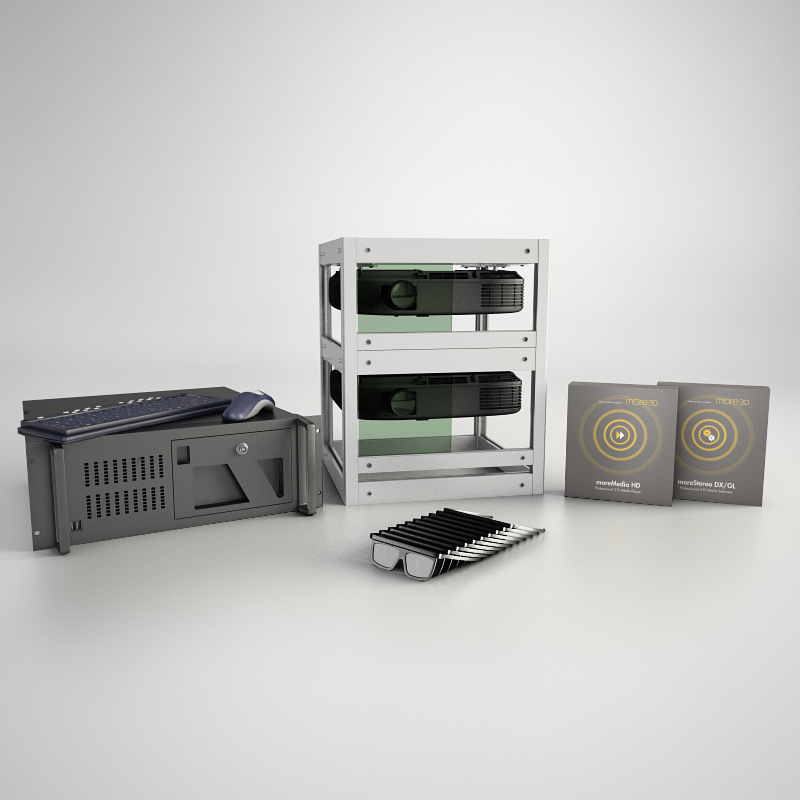
Designed for fixed ceiling installation, the morePheus³ Top enables shadow-free 3D or 2D projection with minimal space usage. It supports flexible mounting, quick setup, and multiple 3D filter systems – making it a smart, turnkey solution for compact rooms and professional presentations.
Practical Use Cases
Key Features of portable
VR Systems
Compact & Travel-Ready
Designed for transport, quick setup, and minimal footprint
Plug-and-Play Integration
Preconfigured for moreViz and major 3D/CAD apps
Desktop-Class Performance
High-end GPU power in a portable workstation
VR Portable System
Mobile demos for sales and exhibitions
On-site reviews and customer workshops
Classroom setups for and education
Temporary & pop-up installations
Did you know?
Need a turnkey VR system that travels with you?
We’ll help configure the right hardware and software for your workflow.
How the VR Visualization Works
From CAD to VR in Minutes
Bringing your designs into virtual reality has never been easier. With moreViz, you can view and interact with your existing 3D models – without modifying your source code or exporting files. Just 3 simple steps.
Step 1 - Install moreViz Software
Install moreViz, connect your VR hardware, and follow our step-by-step guide - or let us support you directly.
Step 2 - Launch Your Application
Start your OpenGL software - like Siemens NX or PTC Creo - and see your 3D model in full-scale VR, instantly.
Step 3 - Explore, Present, Decide
Walk through your design and run virtual reviews. We’re happy to help with setup and maintenance.