You put on a VR headset and step into a virtual environment. At first, everything feels impressive. You look around, move through the scene and begin exploring.
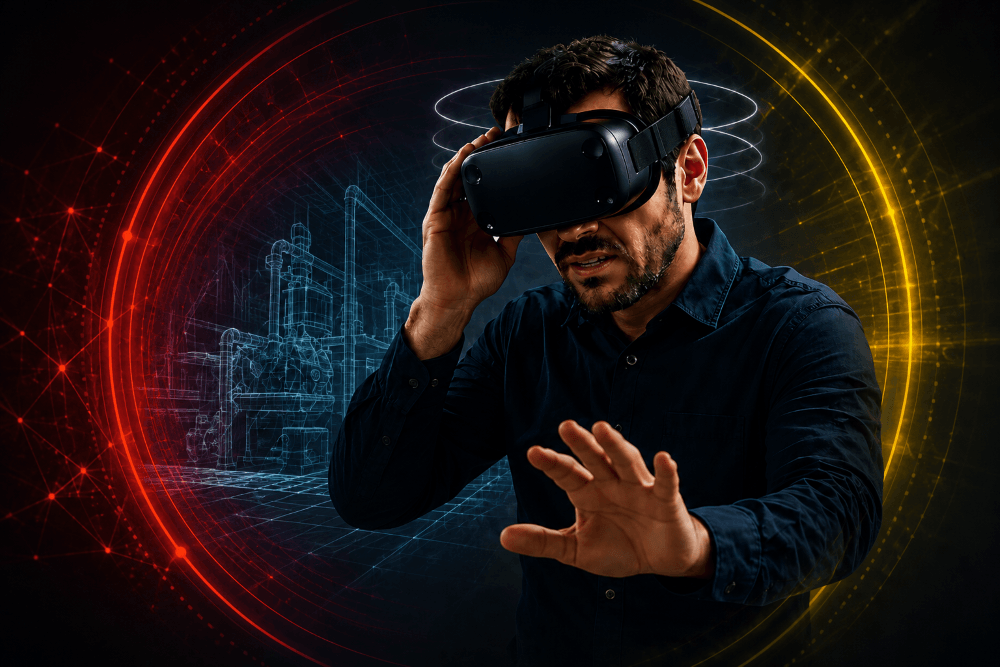
A few minutes later, the experience changes. You feel dizzy, your eyes become tired or a wave of nausea sets in.
This is known as VR motion sickness, or cybersickness. It can be unpleasant, but many common triggers can be reduced through the right setup, navigation method and user guidance.
What Is VR Motion Sickness?
VR motion sickness describes discomfort that develops for some during or after using a VR headset.
Common symptoms include:
- Nausea
- Dizziness
- Headaches
- Eye strain
- Sweating
- Fatigue
- Disorientation
- Loss of balance
Symptoms vary considerably. Some people experience no problems, while others notice discomfort after only a few minutes. The same person may feel comfortable during a stationary CAD review but unwell during a fast virtual walkthrough.
Why Does Motion Sickness Happen in VR?
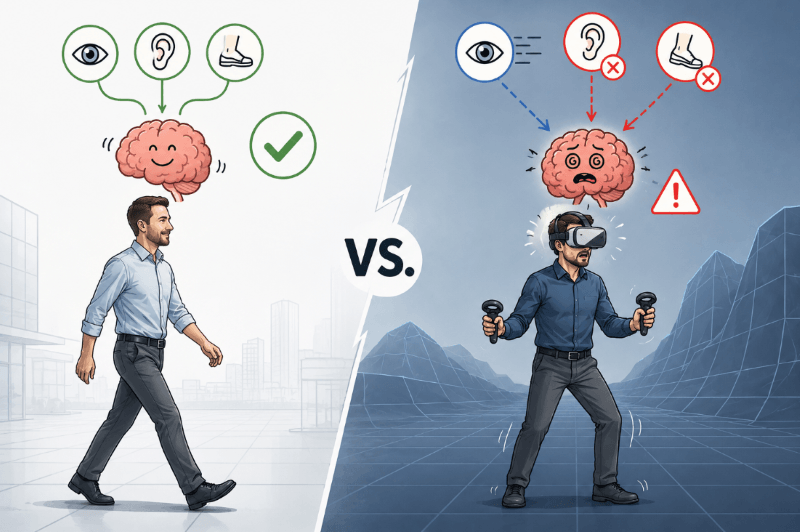
In the real world, your eyes, inner ear and body usually stay in sync as you move.
In VR, that coordination can break. This often happens when you use a controller to move through the virtual environment while your body remains still.
The brain then receives conflicting signals:
Your eyes: “We’re moving forward quickly!”
Your inner ear: “We’re not moving at all.”
Your brain: “Something is wrong. Better prepare to throw up.”
This sensory mismatch can cause nausea, dizziness, fatigue or disorientation.
It is similar to motion sickness in a car or boat, only reversed. In a vehicle, your body detects movement while your eyes may focus on something stationary. In VR, your eyes detect movement while your body remains still.
Does Everyone Experience VR Motion Sickness?
No. Some people can use VR for long periods without discomfort. Others react after a few minutes.
Sensitivity can depend on:
Individual susceptibility to motion sickness
- Previous VR experience
- The type of content and movement
- Session length
- Headset adjustment
- Tracking and system performance
- Current fatigue, stress or illness
Many users become more comfortable after repeated, controlled sessions. This adaptation or training effect is often called habituation or cybersickness abatement. However, users should never be encouraged to continue through strong discomfort.
What Commonly Triggers VR Sickness?
Artificial Movement
Fast acceleration, continuous turning, flying and moving backwards can be particularly uncomfortable.
Low or Unstable Frame Rates
Dropped frames and stuttering make the virtual environment feel unstable. A high-quality VR HMD helps, but the workstation must also render the application consistently.
Tracking Problems
The virtual view should respond immediately when the user moves their head. Delay, jitter or drift can break the sense of stability and increase discomfort.
Incorrect IPD and Headset Setup
The interpupillary distance, or IPD, is the distance between the centres of the eyes. An incorrect IPD setting, poor headset positioning, blurred lenses or excessive strap pressure can cause eye strain and headaches.
Long Sessions
Symptoms can build gradually. This is particularly relevant for first-time users and applications with strong artificial movement.
How to Reduce VR Motion Sickness
Use Natural Movement
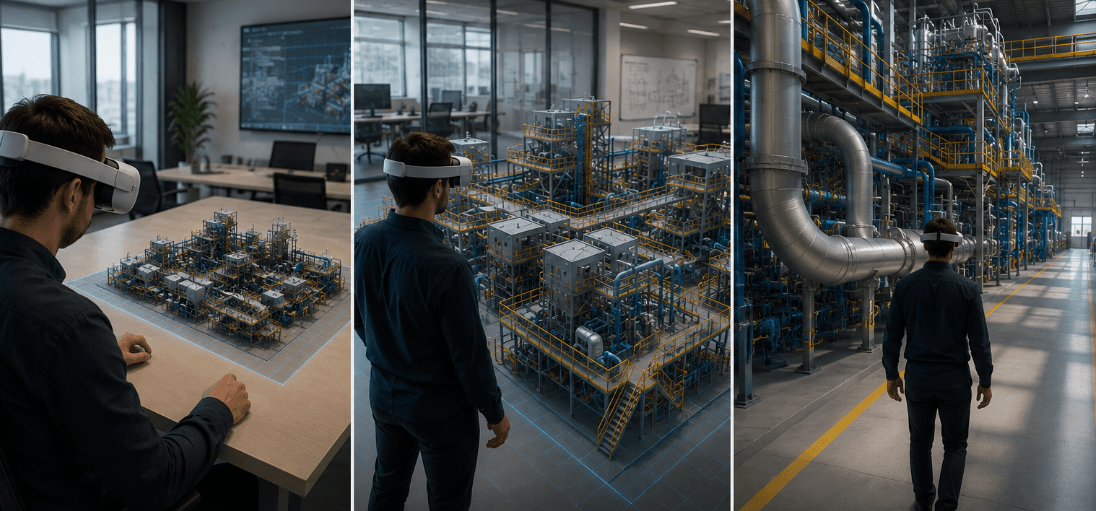
Where possible, let users move physically around a virtual model instead of navigating entirely with a controller.
Because the visual movement matches the physical movement more closely, the experience usually feels more natural.
Offer Teleportation and Snap Turning
Teleportation moves the user directly between two positions without showing the movement in between.
These methods may feel less realistic than smooth movement, but they are often more comfortable for new or sensitive users.

Keep Performance Stable
A comfortable professional VR system should provide:
- A consistent frame rate
- Low latency
- Accurate head tracking
- Reliable controller tracking
- Sufficient graphics performance
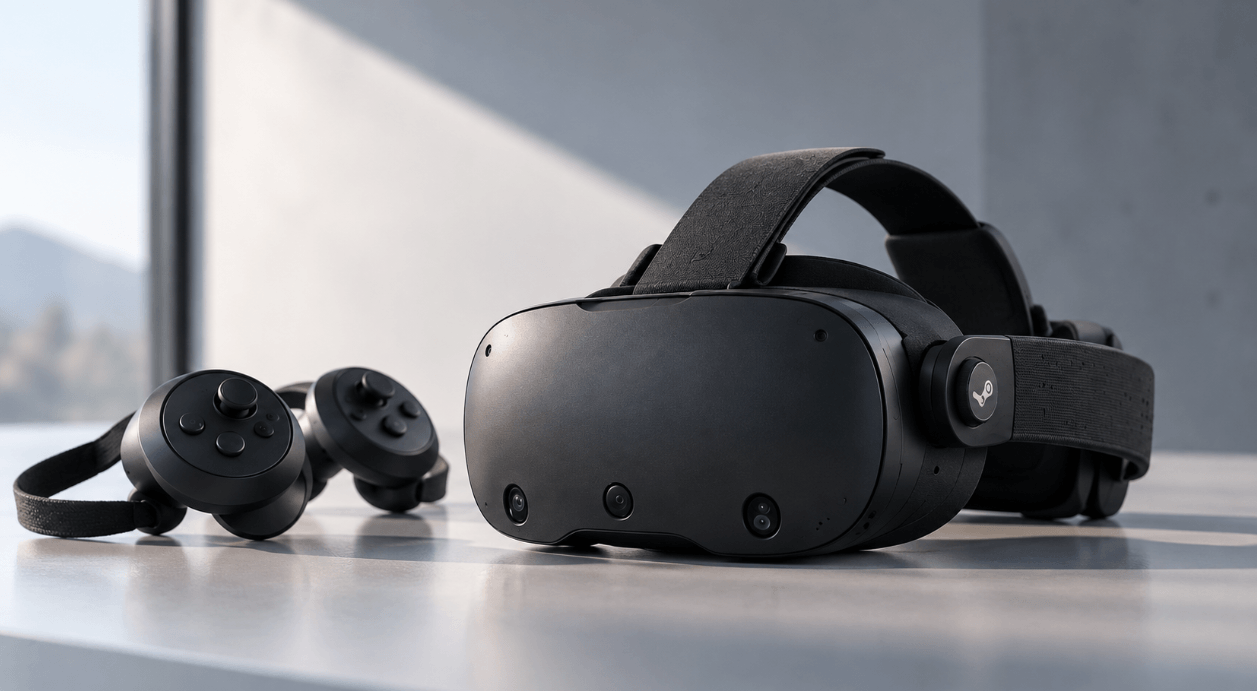
A quality VR HMD is therefore significant. Find here a list of recommended VR HMDs.
The original application, VR software, workstation and headset must work together. A high headset refresh rate has limited value when the computer cannot deliver the required frames consistently.
Configure the Headset Properly
Before each session:
- Adjust the headset position
- Set the correct IPD
- Clean the lenses
- Check the strap tension
- Confirm that the image is sharp
- Recalibrate the tracking area when required
These checks take little time and can prevent avoidable discomfort.
Did you know? With moreViz, users can adjust the movement speed and teleport between previously placed markers. It supports also all VR HMDs.
Use Passthrough for Orientation
Passthrough uses the headset cameras to show the physical surroundings.
It can help users see nearby equipment, reorient themselves and move more confidently between virtual and physical tasks.
Passthrough supports awareness and orientation. However it might not remove the sensory conflict caused by fast artificial movement completely.

Start With Short Sessions
Based on experience, introductory sessions of around five to ten minutes, followed by a short break, work well for many first-time or sensitive users.
This is a useful starting point rather than a universal rule. The session should always stop when discomfort begins.
Users can gradually increase the duration as they become familiar with the headset, controls and navigation.
Offer a Seated Mode Where Appropriate
Some applications can be used comfortably while seated.
The virtual eye height and controls should match the seated position. Sitting alone does not prevent motion sickness when the virtual environment still moves independently of the body. In moreViz you can set such settings in the virtual environment.
What Should You Do When Symptoms Begin?
Stop the session and rest a bit. Trying to continue often makes the discomfort worse.
The user should:
- Remove the headset.
- Sit down in a stable environment.
- Rest until the symptoms have disappeared.
- Avoid immediately returning to the same experience. After some time a new try can be made.
Anyone who still feels dizzy, visually disturbed or disoriented should avoid driving, operating machinery or performing safety-critical work.
Persistent, recurring or severe symptoms should be discussed with a medical professional.
Alternatives to VR Headsets
A headset is not always the right solution.
Some users prefer to remain aware of the room. Group reviews may also work better when participants can see and speak to one another naturally.
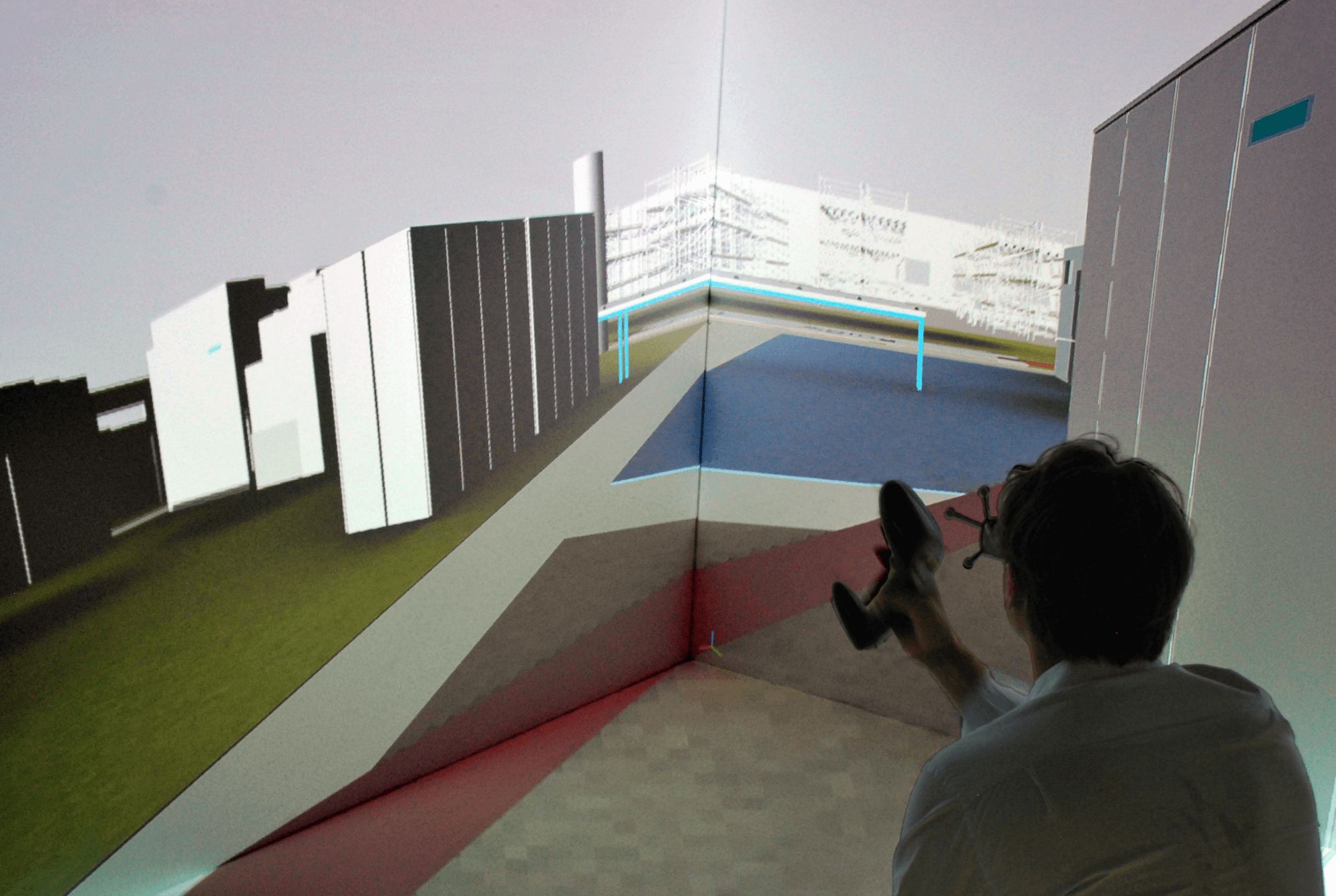
VR CAVEs and Domes
A VR CAVE or Dome creates an immersive environment through stereoscopic projection.
Participants remain visible to one another and can communicate naturally. This makes these systems suitable for engineering reviews, research, teaching and presentations.
VR Powerwalls
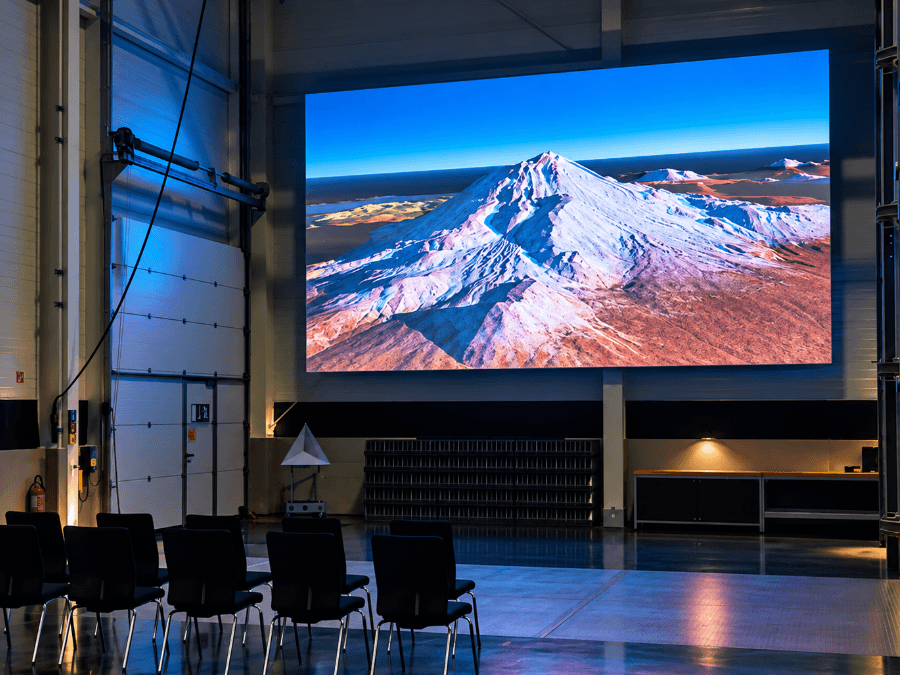
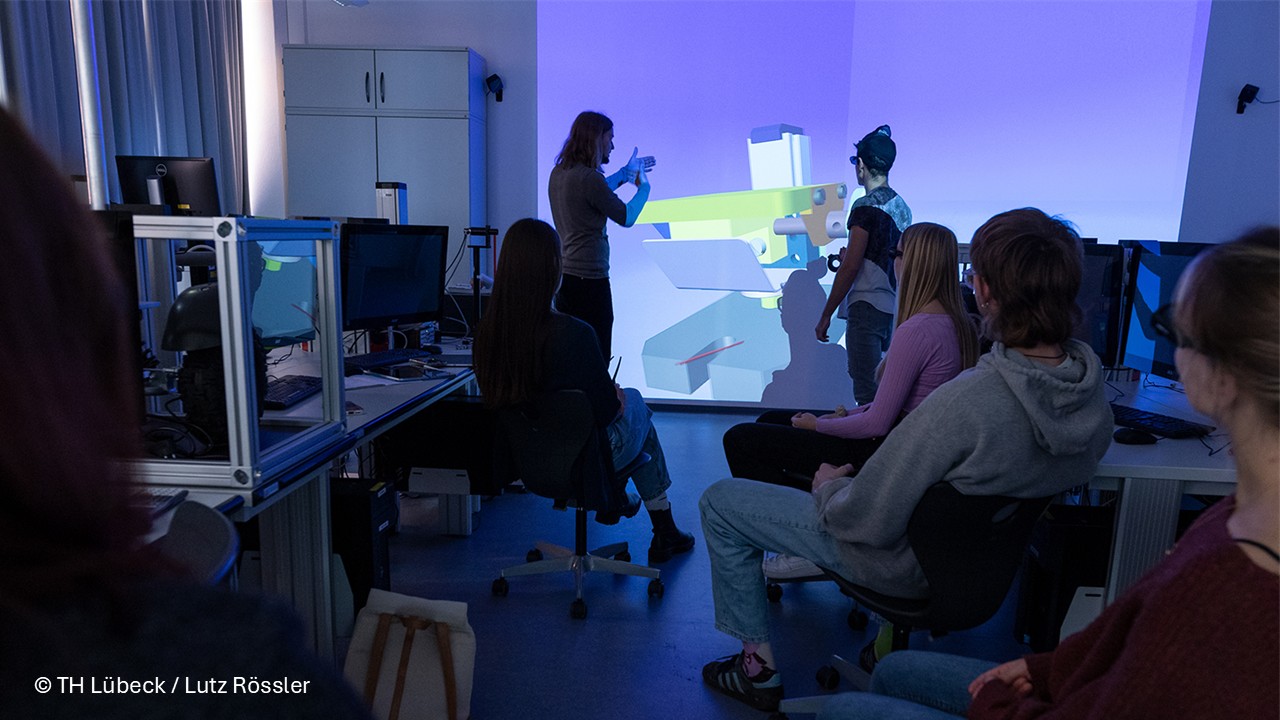
A VR Powerwall presents stereoscopic 3D content on a large display.
Users remain aware of their surroundings, which supports natural discussions and collaborative reviews.
VR motion sicknes – a concern that can be solved!
VR motion sickness is a real concern, but many common triggers can be reduced.
Natural movement, stable performance, precise tracking, correct headset adjustment and suitable navigation methods make a clear difference. Short introductory sessions also give users time to become familiar with the technology.
When a headset does not suit the users or the task, a Powerwall, CAVE or Dome may be the better choice.
The key question is simple:
Which VR setup allows people to work comfortably and effectively?
Feel free to ask for free consultation.